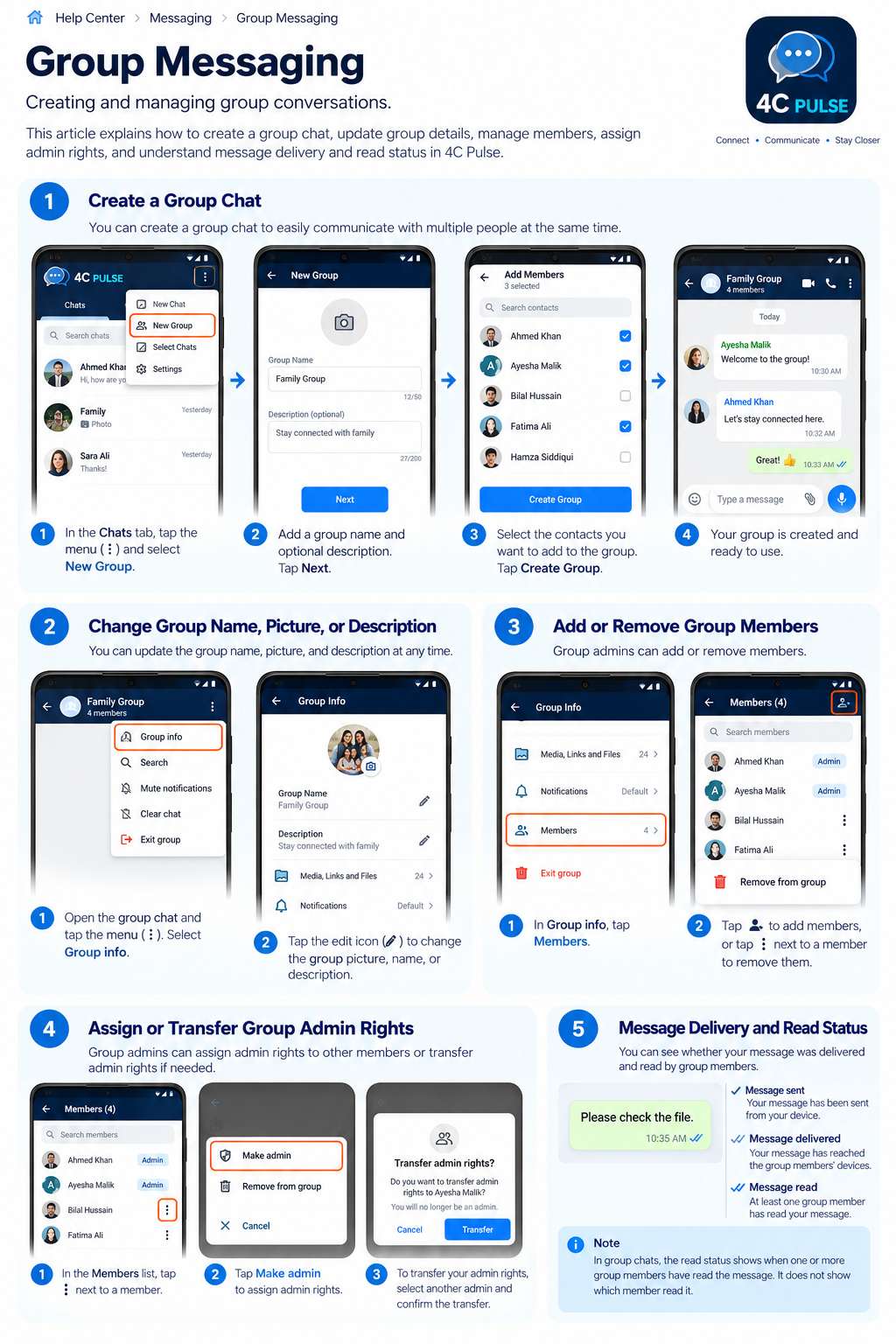
Create a Group Chat
Group messaging allows you to communicate with multiple people in one conversation.
Steps
- Open 4C Pulse on your Android phone.
- Go to the Chats screen.
- Tap the three-dot menu (⋮) in the top-right corner.
- Select New Group.
- Enter a group name, such as Family Group or Project Team.
- Add a group picture and description if these options are available.
- Select the contacts you want to include.
- Review your selected members and tap Create Group.
- Open the new group and send your first message.
Tips
- Choose a clear, recognizable group name.
- Add only the contacts who need to participate.
- Use a group picture that helps members identify the conversation.
- Confirm that the intended participants have been selected before creating the group.
Change a Group Name, Picture, or Description
Group information helps members recognize the conversation and understand its purpose.
- Open the group conversation.
- Tap the three-dot menu (⋮) in the top-right corner.
- Select Group Info.
- Locate the group name, picture, or description.
- Tap the relevant field or edit icon, if available.
- Enter the new group name or description, or select a new picture.
- Save or confirm your changes.
- Return to the conversation and verify that the updated details appear.
Tips
- Use a short, descriptive group name.
- Keep the description relevant to the group's purpose.
- Use an appropriate image that members can easily recognize.
- If you cannot edit the group information, check whether your account has the required group permissions.
Add or Remove Group Members
Group administrators may be able to manage membership, depending on the permissions available in the current version of 4C Pulse.
Add members
- Open the group conversation.
- Open the group menu and select Group Info.
- Tap Members.
- Tap the add-member icon, if available.
- Search for a contact or select a contact from the list.
- Confirm the selection and complete the addition.
Remove members
- Open Group Info → Members.
- Find the member you want to remove.
- Tap the member's menu (⋮), if available.
- Select Remove from group.
- Confirm the action if prompted.
- Check the member list to verify the change.
Tips
- Verify the contact before adding or removing someone.
- Removing a member may prevent them from participating in future group messages, but it does not necessarily erase messages already stored on their device.
- If the relevant controls are missing, your account may not have permission to manage members.
Assign or Transfer Group Admin Rights
Group administrators help manage membership and group settings. The options available depend on the current implementation and your permissions.
Assign admin rights
- Open the group conversation.
- Navigate to Group Info → Members.
- Find the member you want to promote.
- Tap the member's menu (⋮).
- Select Make admin, if available.
- Confirm the action if prompted.
- Verify that the member is identified as an administrator.
Transfer admin rights
- If 4C Pulse provides a separate transfer option:
- Open the group member list.
- Select the eligible member who should become the administrator.
- Choose the relevant transfer-admin option.
- Review the confirmation message carefully.
- Confirm the transfer only if you intend to change administrative responsibility.
- Verify the resulting administrator permissions.
Understand Group Message Delivery and Read Status
Message indicators help you understand whether a message was sent, delivered, or read. Their exact meaning depends on how the current version of 4C Pulse implements delivery and read receipts.
Common indicators
- Message sent: The app has submitted the message from your device.
- Message delivered: The message has reached the recipient device or devices according to the app's delivery-status implementation.
- Message read: The app has recorded a read receipt from one or more group members, if supported.
In group conversations
- A group message may be delivered to members at different times.
- Some members may read a message while others have not
- A group-level read indicator may not identify every member who has read the message.
- A delayed indicator does not necessarily mean the message has failed.
Troubleshooting
- Check your internet connection.
- Confirm that the message appears in the conversation.
- Allow time for other group members' devices to reconnect.
- Check whether the app has an updated version available.
- If message status remains unclear, contact 4C Pulse support with the app version and a description of the issue.
Note: The first four phone screens in the example image, showing the New Group menu, group details, contact selection, and the completed group chat.