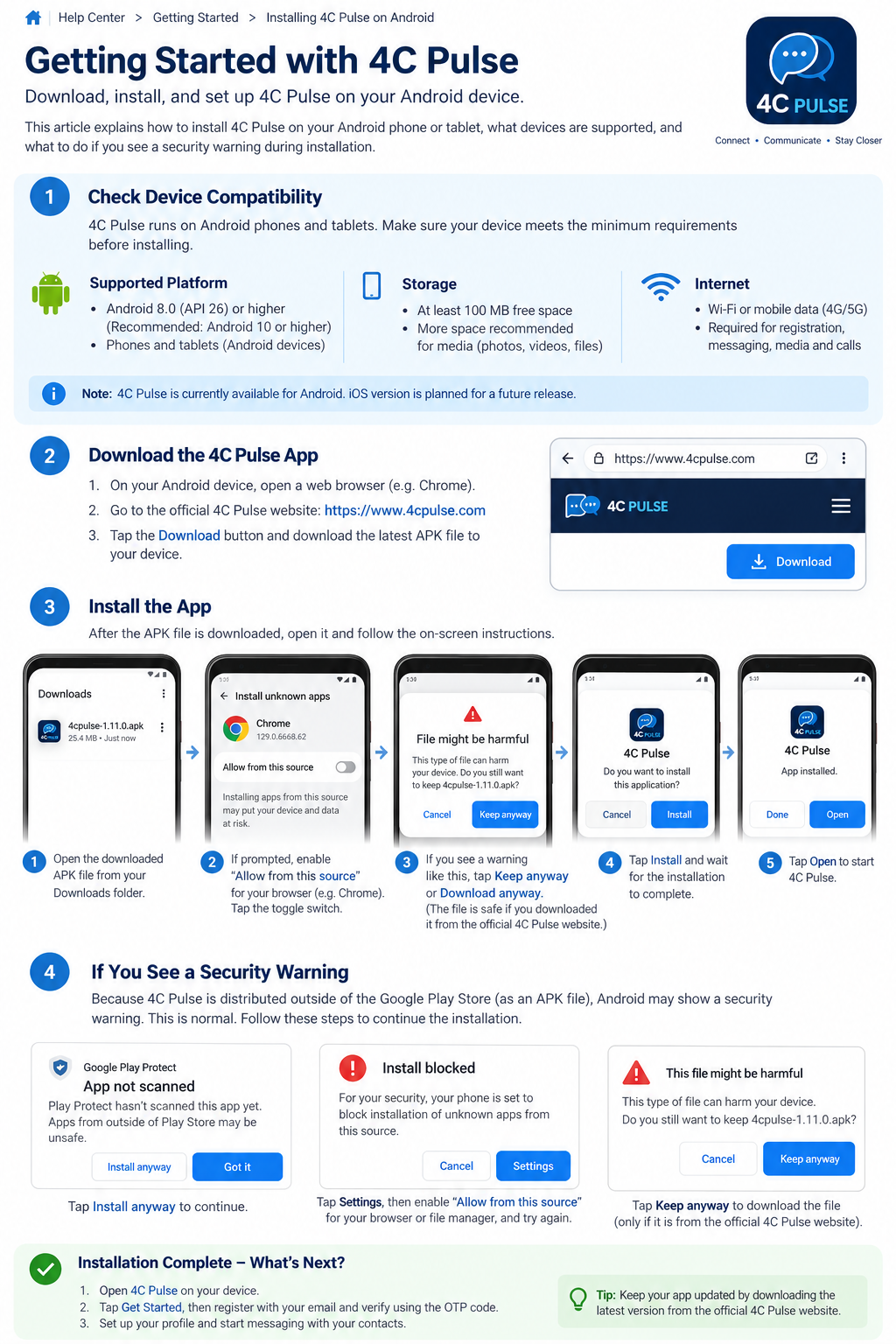
Check Device Compatibility
4C Pulse is an Android messaging application. Before installing, check the following requirements.
Step 1: Check Requirements
- Operating system: Android 10 (API 29) or later, based on the current project configuration.
- Device: Compatible Android phone or tablet.
- Internet: Wi-Fi or mobile data for downloading, registration, and messaging.
- Storage: Enough free space for the APK, installation, and app data.
Step 2: Check Requirements
- Open Settings on your phone.
- Scroll down and select About phone or About device.
- Open Software information if available.
- Find Android version.
- Confirm that it is Android 10 or newer.
Step 3: Download the application
- Open Chrome or another browser on your Android device.
- Visit the official website: www.4cpulse.com.
- Open the Download page.
- Download the latest official 4C Pulse APK.
- Wait for the download to finish.
Always download the APK from the official 4C Pulse website. Do not install APK files from unknown websites or untrusted messages.
Step 4: Install the downloaded APK
- Open your phone's Downloads folder, or tap the completed download notification.
- Select the 4C Pulse APK.
- If Android asks for permission to install apps from this source, follow the instructions below.
- Review the installation prompt and tap Install.
- Wait until installation completes, then tap Open.
Step 5: Android menus and warning messages differ by manufacturer and OS version.
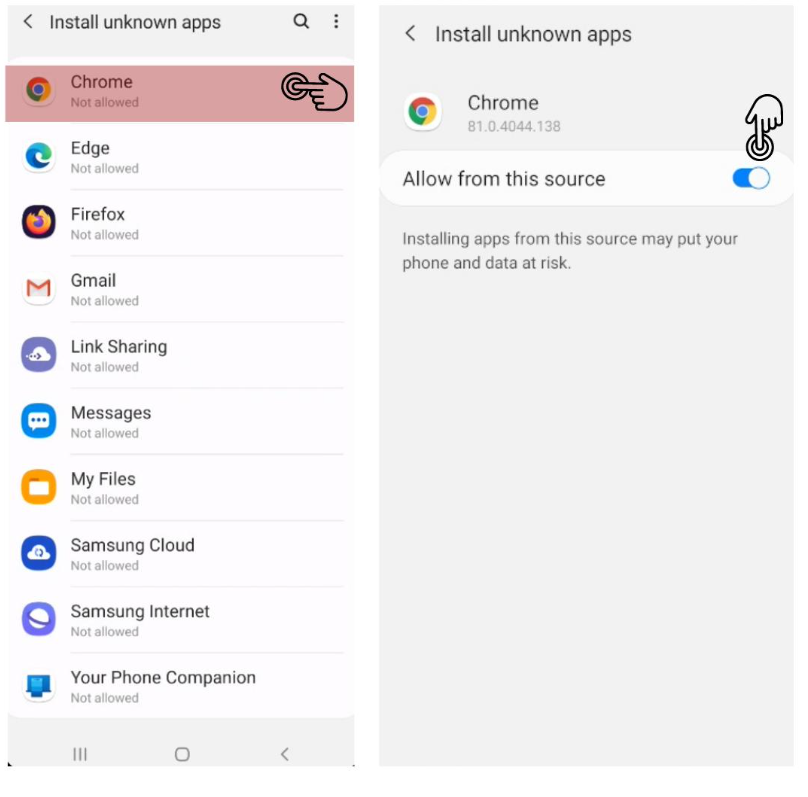
- Warning A - “Install unknown apps”
- Android may block installation because the APK was downloaded outside Google Play.
- Tap Settings when prompted.
- Select the browser or file manager used to open the APK.
- Enable Allow from this source, if you trust the source.
- Return to the APK and try again.
Warning B - “App blocked” or a Play Protect warning
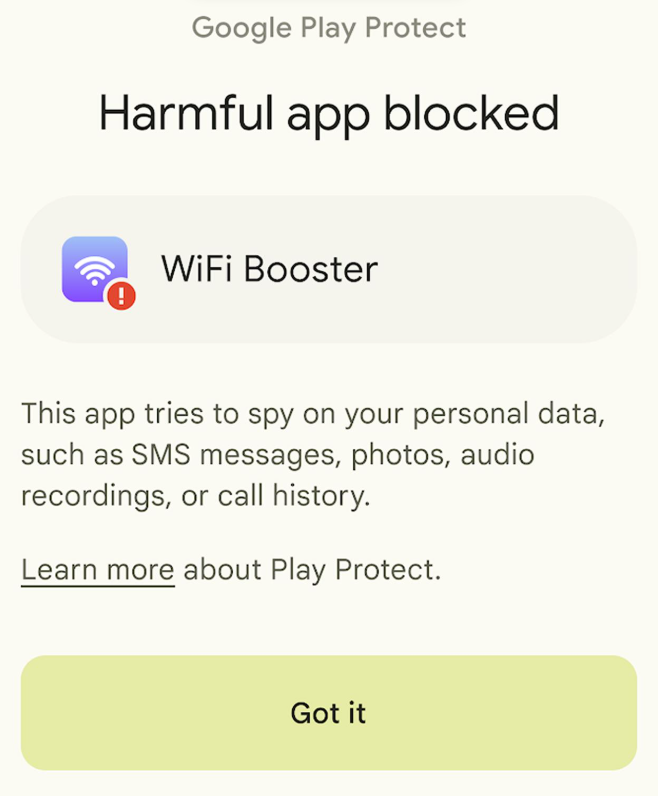
Do not automatically bypass this warning. Confirm that you downloaded the current APK from the official site. If Google Play Protect identifies the app as harmful, stop and contact 4C Pulse support so the APK can be investigated.
Warning C - “App blocked” or a Play Protect warning
Check that your device runs Android 10 or later, that the download completed correctly, and that sufficient storage is available. If the error persists, obtain a fresh APK from the official website and contact support with your device model and Android version.
Disable this permission afterward if you no longer need it.
Step 6: Troubleshooting checklist
- Download fails: check your internet connection and retry.
- APK will not open: locate the completed file in Downloads.
- Installation fails: verify Android compatibility, free space, and the integrity of the APK.
- App will not start: restart the phone and retry; contact support if the problem continues.
- Registration fails: verify your email address and check for the verification email.
Compatibility note: A Samsung Galaxy A55 (SM-A556E) has previously been used successfully to install and test 4C Pulse. Other models should be assessed against the Android version and app requirements.